Server
QNAP NAS (x86_64, QTS with Container Station)
Native .qpkg package. Ubuntu (.deb): coming soon.
Deployment
A QNAP NAS, one forwarded port, a browser. Precise prerequisites, no slogans.
Server, step by step
Install the NyxTalk package (.qpkg) in QTS App Center, on a QNAP NAS (x86_64) with Container Station. The package is provided with your demo.
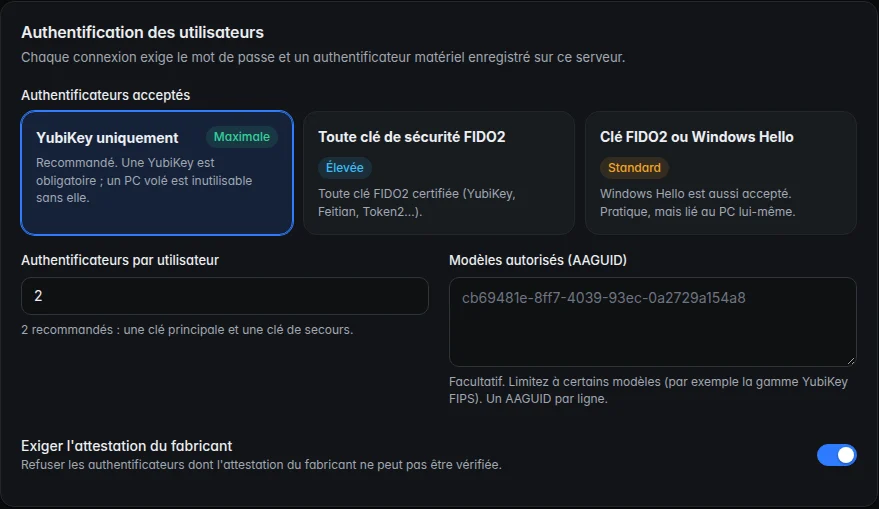
Click “Open”: the first setup runs in your browser, without a command line. Choose your security level and create the owner account.
UDP 51823 to the NAS. That's the only port. The administration console (HTTPS 8790) stays on your local network and must never be forwarded.
Email invitations through your SMTP, single-use enrolment links, approval with a 6-digit code.
Signed server and device updates, triggered from the console. Data is kept across updates and uninstallation.
Network
The NAS answers nothing that isn't authenticated: a scanner sees a closed door. Everything else — messaging, calls, updates — happens inside the encrypted application tunnel, in the office and remotely alike.
Platforms and prerequisites
QNAP NAS (x86_64, QTS with Container Station)
Native .qpkg package. Ubuntu (.deb): coming soon.
One port to forward
UDP 51823 to the NAS. Console HTTPS 8790: local network only, never forwarded.
Windows 10 and 11 (64-bit)
Authenticode-signed executable. No administrator rights and no VPN driver needed; doesn't interfere with your corporate VPN.
macOS 12 or later
Apple silicon and Intel. Device key in the Secure Enclave.
APK
Key in the Keystore (StrongBox/TEE) with Google attestation; YubiKey over NFC; no Google notifications, by choice.
Coming soon
App built and tested; distribution coming soon.
YubiKey 5 (USB, NFC)
Or any certified FIDO2 key, depending on the level you choose. Two keys per person recommended (main + backup).
Enrolment
Request a demo: we'll check your NAS and network with you, then install NyxTalk on your infrastructure.